What's new on NeetoRecord Help


image_43Mk39rsz.png

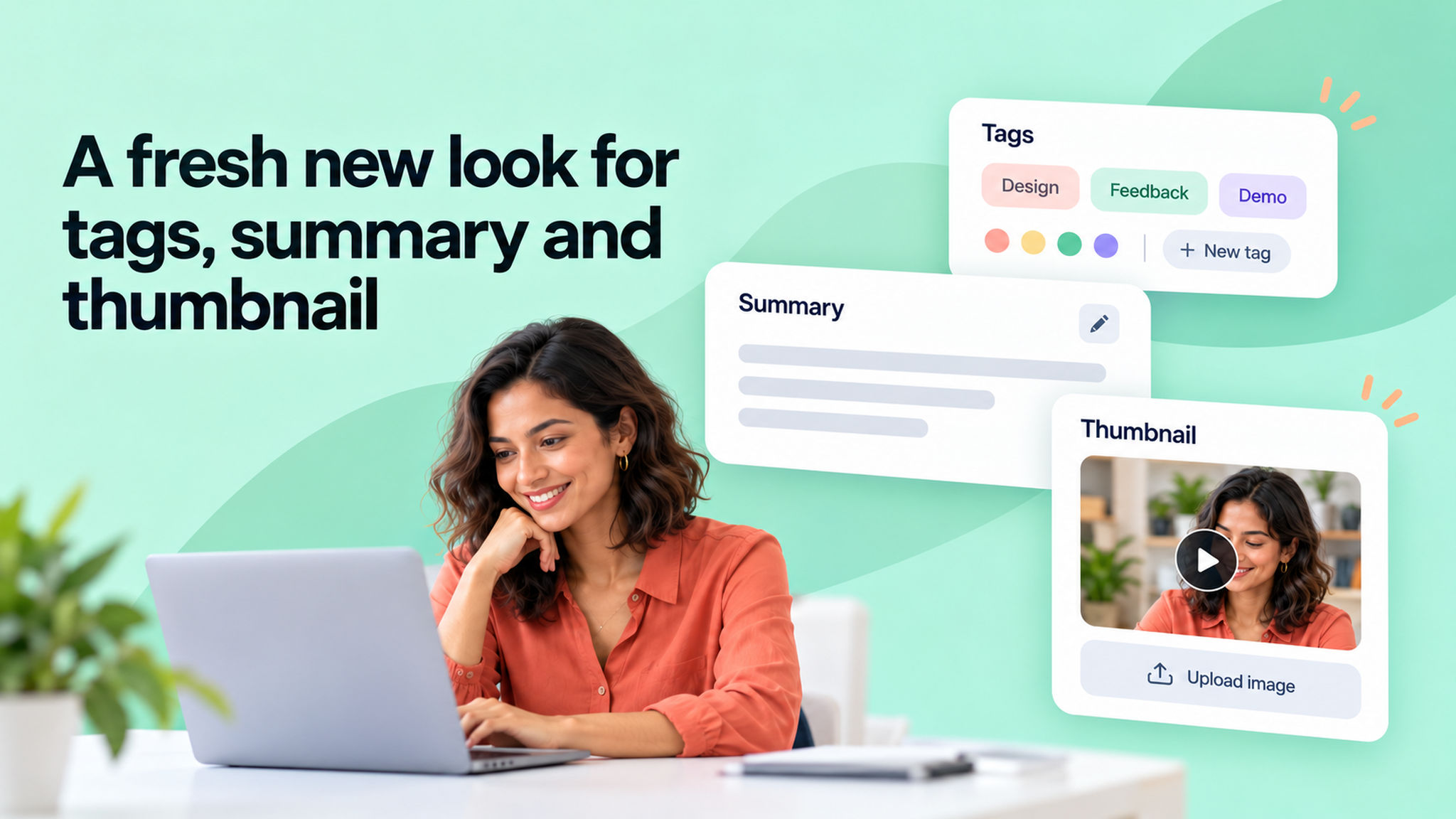
We've refreshed the design of the basic info page. Tags, summary, and thumbnail now have a cleaner and more polished look.

Along the way we made a few things smoother too, you can now create a new tag and pick its color right from the dropdown, and editing a summary drops your cursor exactly where you click so you can jump straight to the part you want to change.
Timestamped_comments_on_recordings_jx0HMeGK3.png

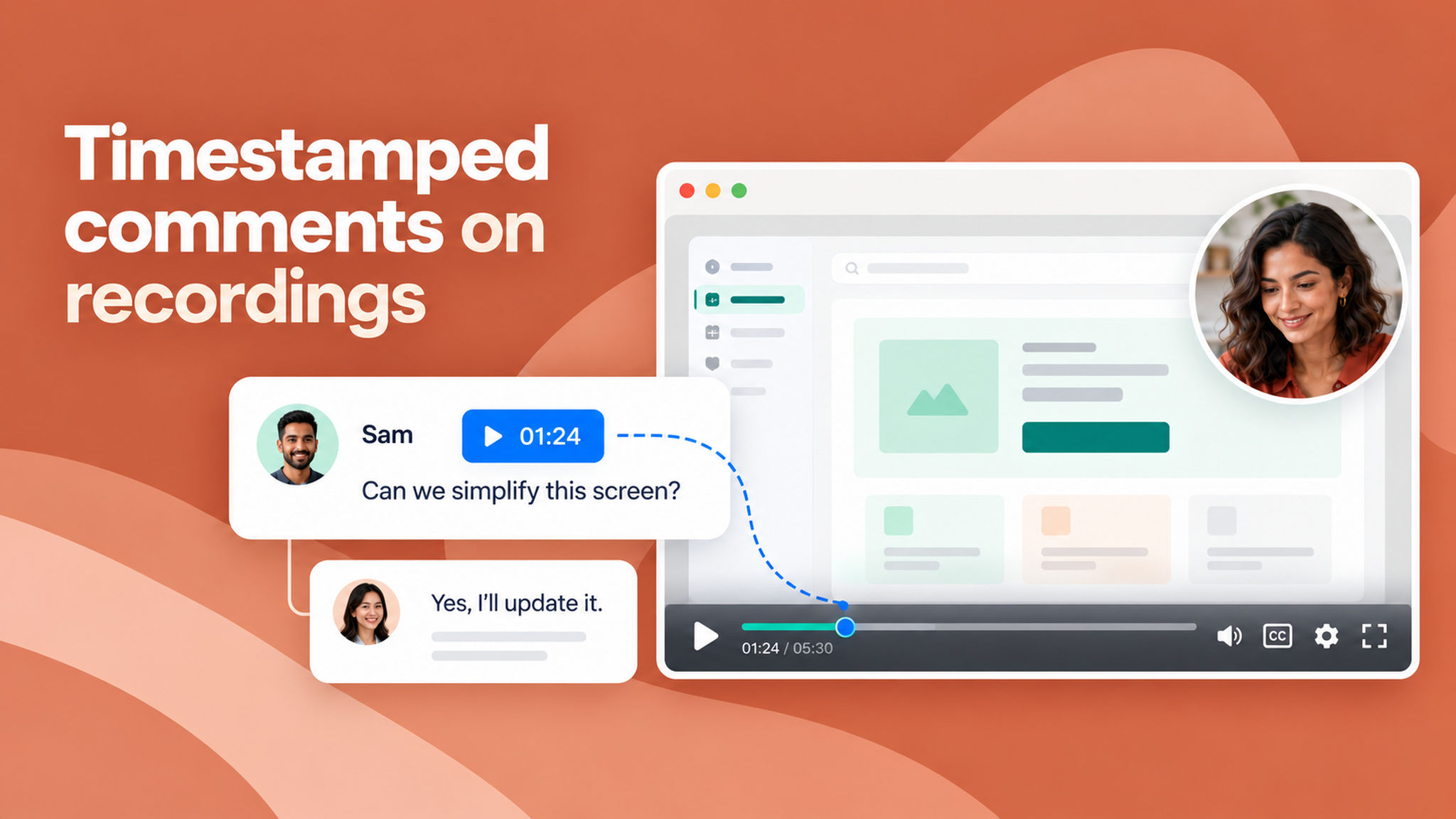
We added timestamped comments to NeetoRecord. When you comment on a recording, the comment is pinned to the exact moment you're watching, and anyone can click the timestamp to jump straight there.

This is especially useful for remote teams reviewing work asynchronously, where bug reports, design feedback, and walkthrough notes can point to an exact moment in the video rather than explaining where to look.

To learn how to use this feature, read our help article.


Switch_your_camera_to_full-screen_mid-recording_oeyB5vgQK.png

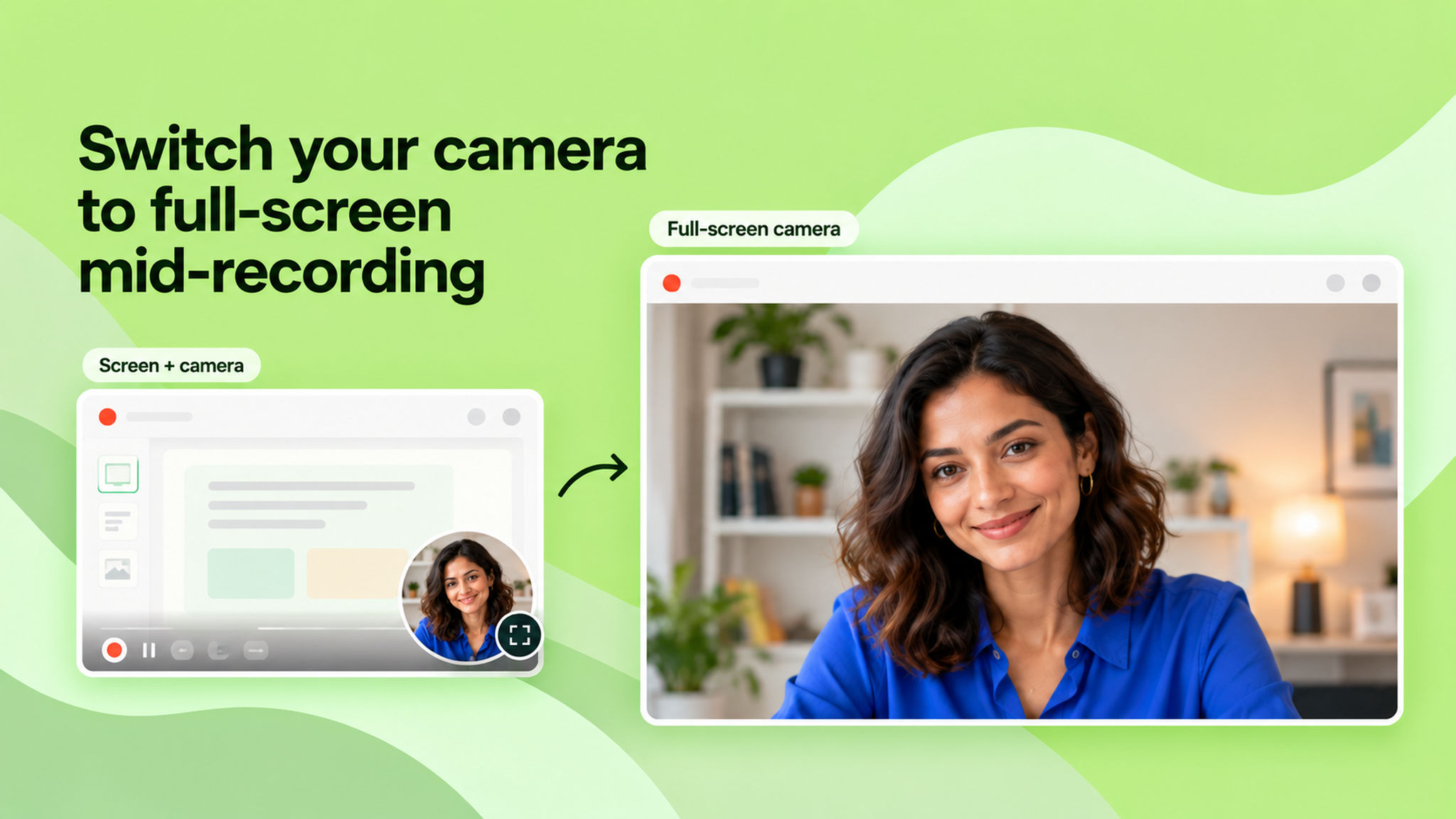
You can now expand your camera to full-screen while recording in screen + camera mode and switch back anytime. Earlier, the camera stayed locked inside the floating bubble for the entire recording.

This is handy when you want the focus on you instead of the screen, walking through an idea, reacting to something, or any moment where your face should be front and centre. When you're ready to show the screen again, one click takes you back.

Just hit the full-screen icon on the camera bubble to toggle between the two views. To learn more, read our help article.


Comments_X-ksuCt2K.png

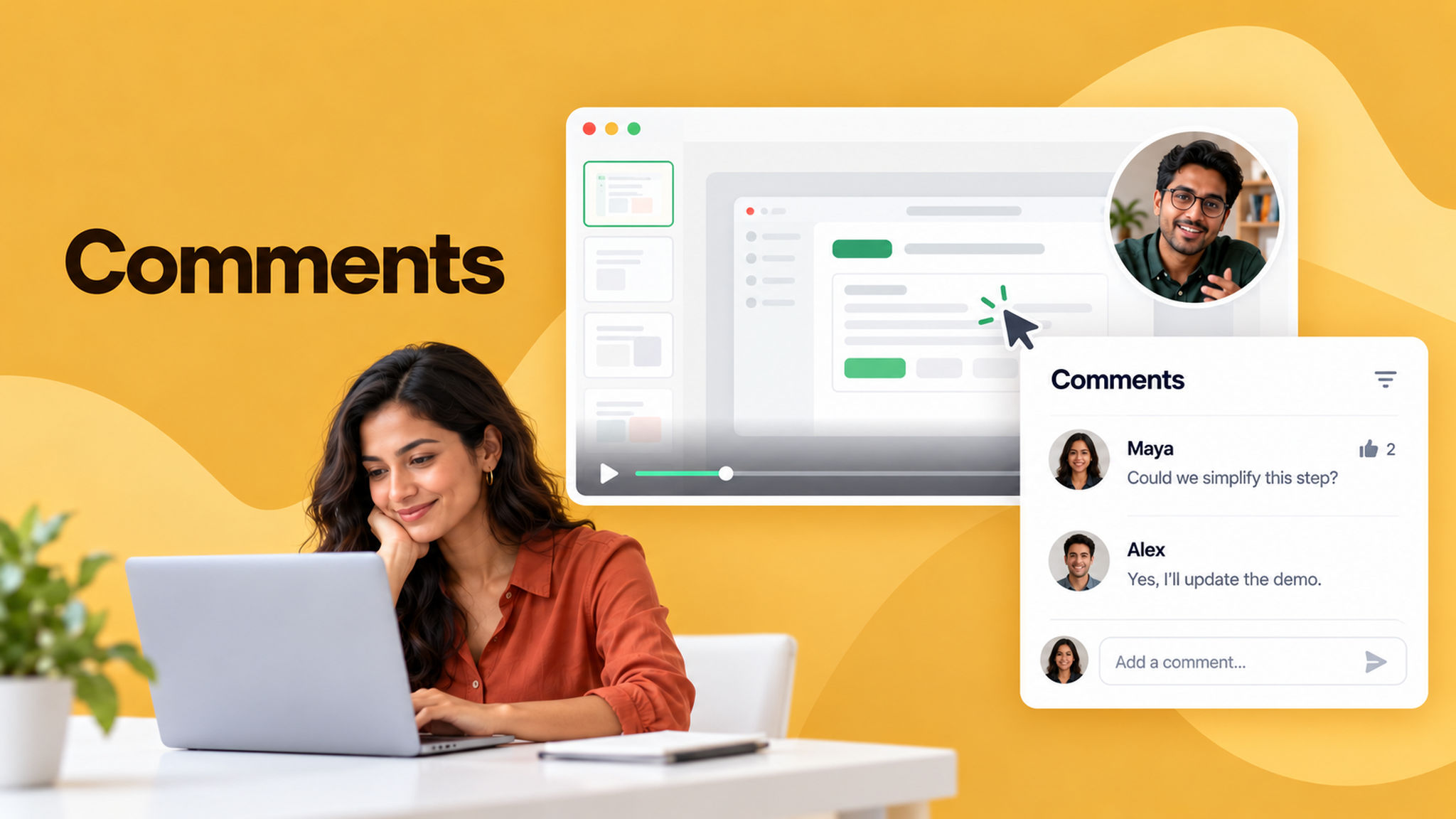
Your recordings now support comments. You, your team members, and viewers can share feedback, ask questions, or start a conversation, right on the recording, without needing email or chat.

Comments are available on both the public watch page and the admin recording page. Viewers will need to log in to comment — no sign-up is required. You can also edit, delete, react with emoji, and share a direct link to any comment.

To learn how to use this feature, read our help article.


Request a recording

Alan Mathews
Request_a_recording_haH7DinOT.png

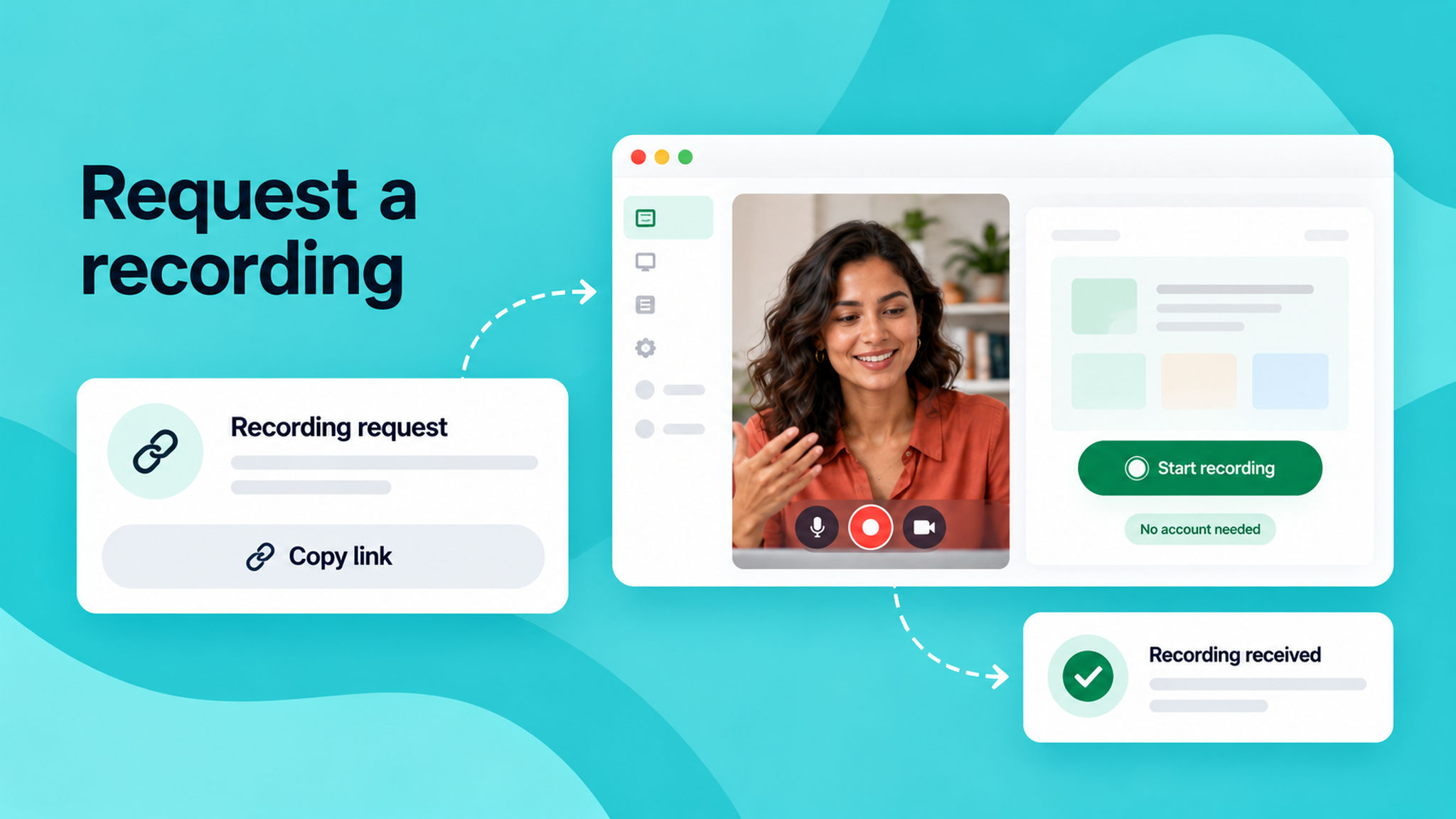
You can now request a screen recording from anyone — no account or installation required on their end. Share a link, and the recipient records their screen in their browser and sends it directly to you. Once submitted, you'll receive an email notification and the recording will appear in your Requested recordings section.

This is useful when a customer needs to show you a bug, a colleague needs to walk you through a workflow, or you want to see exactly what someone is experiencing without scheduling a live call.

To learn how to use this feature, read our help article.


image

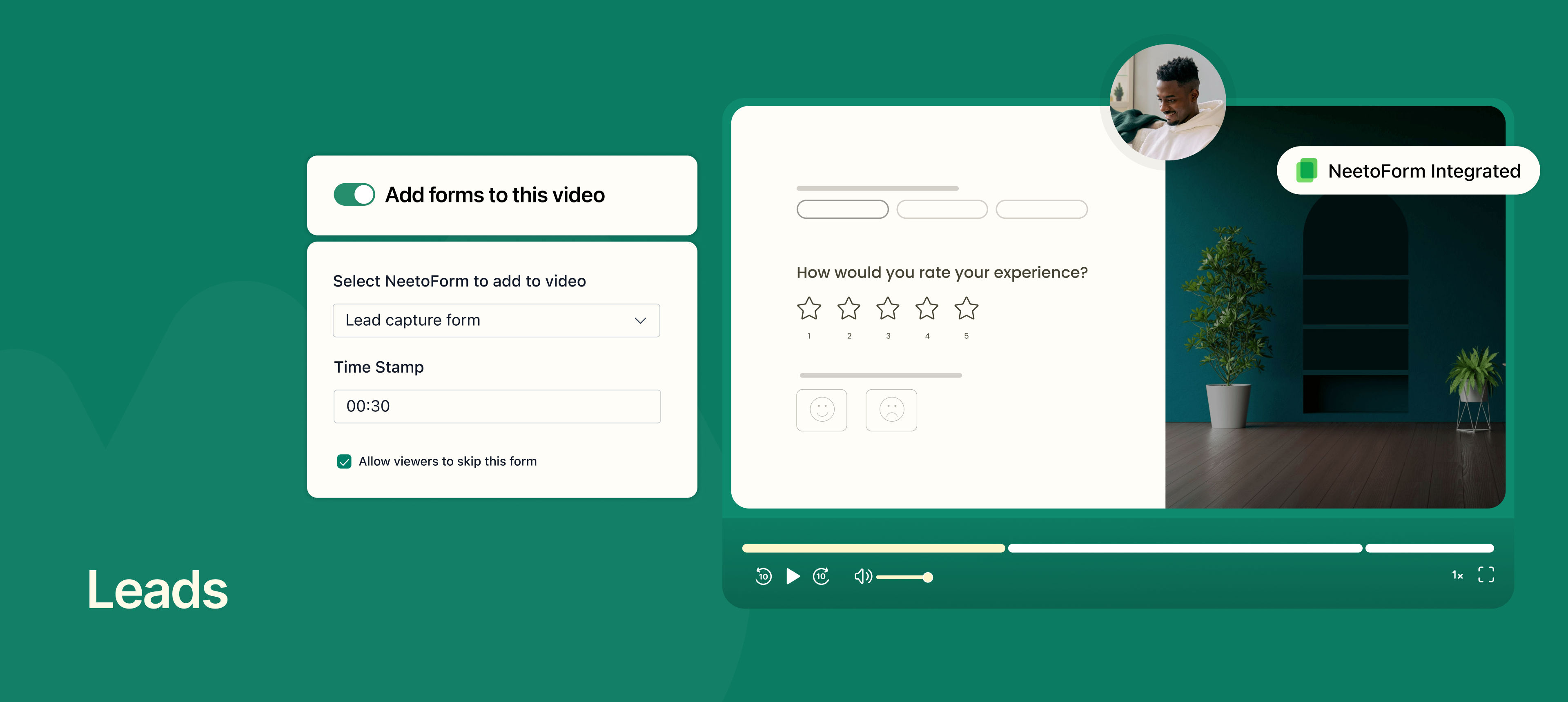
You can now show a form overlay in your recordings using NeetoForm, enabling you to collect submissions directly from your videos.

Choose the exact timestamp for the form to appear and instantly collect submissions all within the recording.

The form is fully customizable through NeetoForm: decide exactly how the form looks, what questions it asks, and watch submissions flow effortlessly into your responses.

Some ways you might use this:

  • Gather sign-ups or contact details during product demos.

  • Present surveys to capture user feedback at key moments.

  • Collect RSVPs or intent-to-purchase data during webinars and tutorials.

No disruptions. No drop-off. Just more conversions, all within your NeetoRecord experience.

To learn more about the Leads feature, read our help article.


Auto Zoom

T Sudhish Nair
Auto_zoom_vnLZWE5v6.png

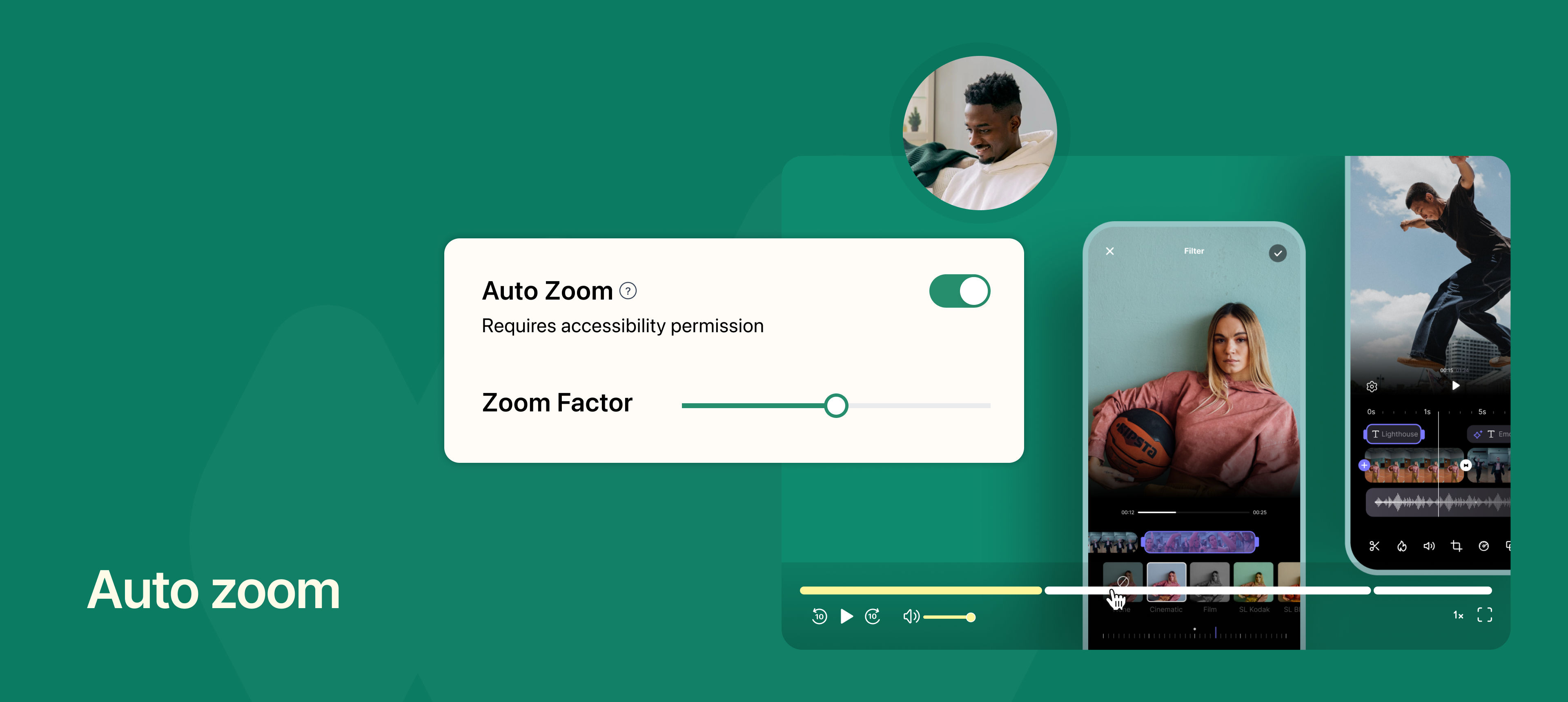
Auto Zoom automatically highlights mouse clicks by zooming into the clicked area during playback. When recording in Entire Screen mode, the clicked area is zoomed for 3 seconds, helping viewers focus on important actions.

You can enable Auto Zoom from Settings → Recording and customize the zoom level (up to 3×). Zoom effects can also be adjusted after the video is uploaded.

This feature improves clarity and viewer engagement by emphasizing key interactions in your recordings.

To learn more about how to use this feature, read our help article.


Organizing_recordings_using_folder_4GKJPgBwB.png

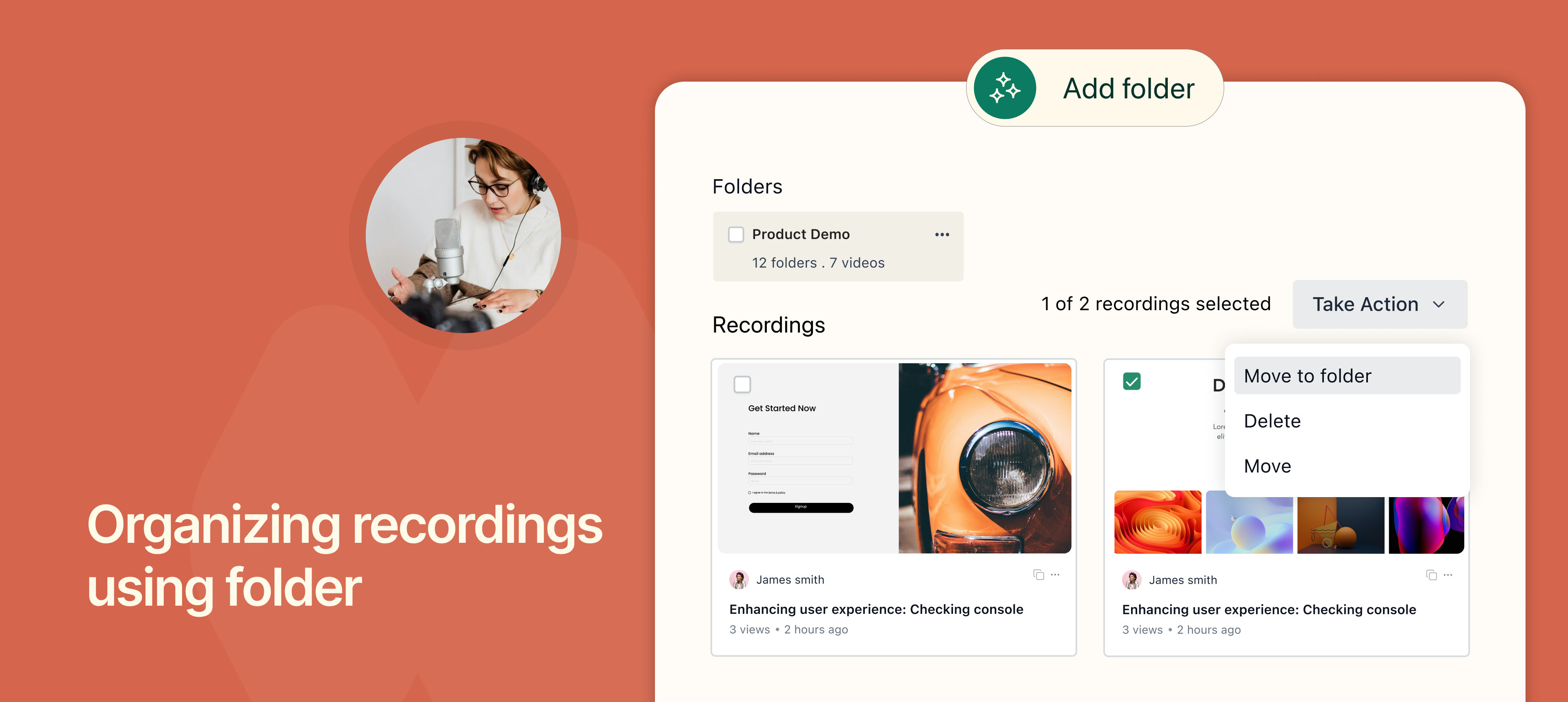
You can now organize your recordings using Folders, making it easier to manage multiple projects or topics.

Create separate folders for different subjects such as lectures, meetings, projects, or client work to keep recordings neatly categorized and quickly accessible. Folders support up to three levels of nesting, allowing you to organize recordings in a structured hierarchy that fits your workflow.

This feature helps reduce clutter and improves workflow efficiency when working with large numbers of recordings.

To learn more about how to use this feature, read our help article.


Background and effects

T Sudhish Nair
Background_and_effects_3XsAp3DWK.png

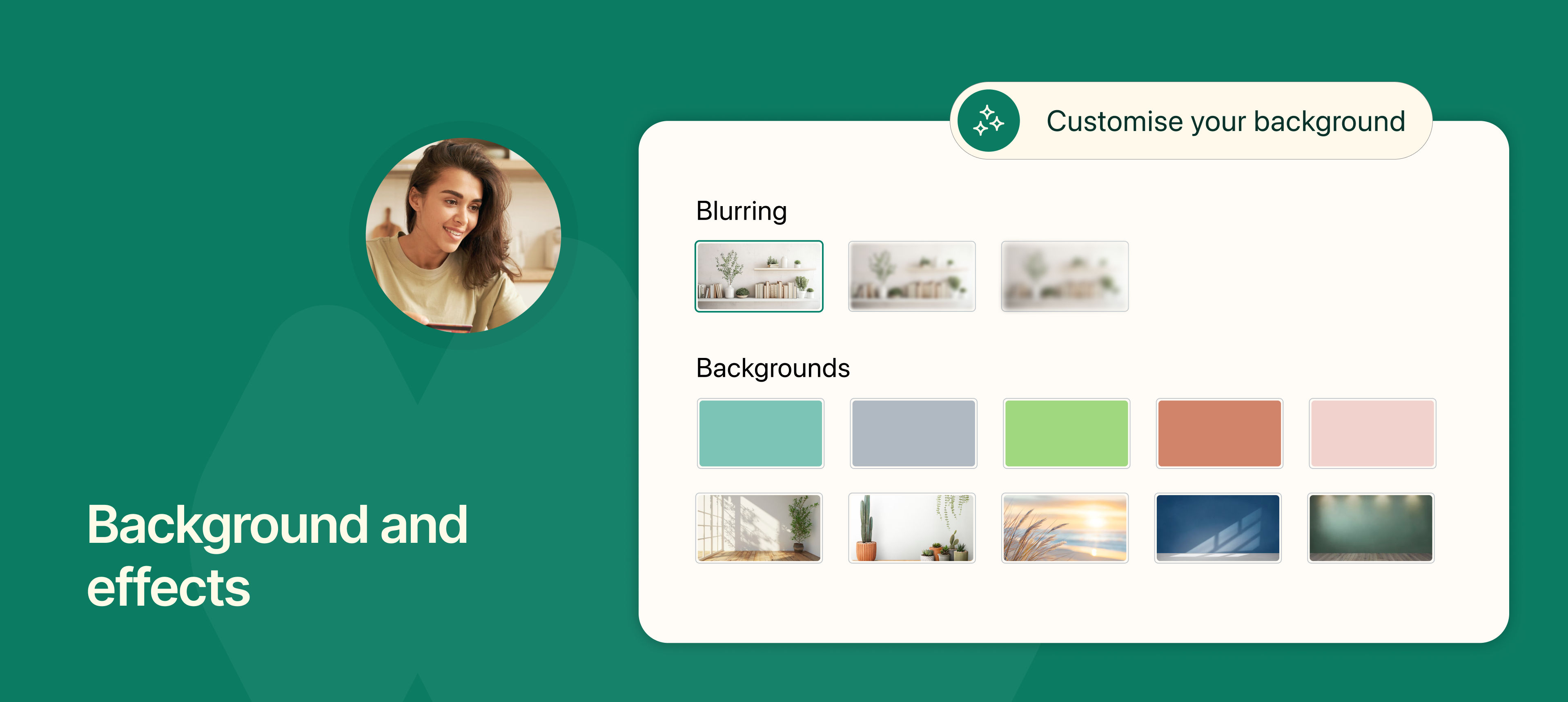
You can now enhance your recording experience in NeetoRecord with virtual backgrounds and camera blur options. This helps you maintain a clean, professional look and keeps the focus on you.

  • Backgrounds: Choose from a curated set of images or upload your own to match your brand or style.

  • Blur effects: Multiple blur levels available so you can soften or hide your surroundings with the intensity you prefer.

  • Real-time preview: Turn on your camera to instantly see how each background or effect looks before you start recording.

To learn how to configure background and effects in your videos, read our help article.


Speaker notes

T Sudhish Nair
image_93QipuafJ.png

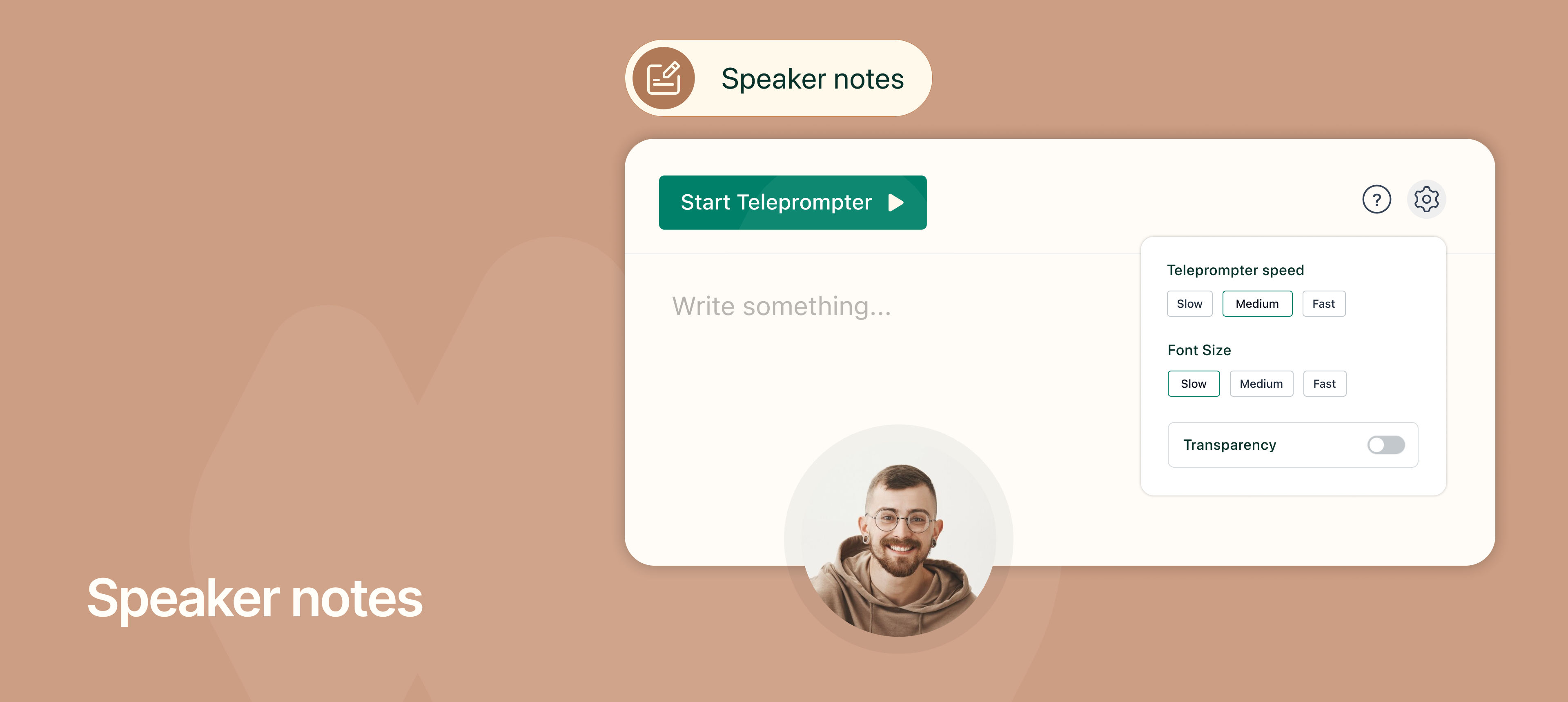
You can now use Speaker Notes in NeetoRecord to help you record videos confidently without worrying about forgetting your script.

You can type or paste your notes into the Speaker Notes window, and they will stay visible only to you while recording. The notes appear on top of any window you switch to, and they are saved automatically unless you choose to remove them.

The built-in teleprompter makes this even more powerful. It automatically scrolls through your notes while you record, allowing you to speak smoothly without stopping to memorize or manually scroll.

To learn how to use Speaker notes, read our help article.