What's new on NeetoRecord Help


You can now save your recordings directly to your local machine right after creating them, without having to upload to your workspace first.

This gives you complete control over where your recordings are stored—whether you want to keep them private on your device, share them through your own channels, or simply have a local backup before uploading.

For example:

  • Save a client presentation locally to share via email without it going to your workspace.

  • Create a local backup of important recordings while still uploading to your workspace.

You can choose to save locally only, upload to workspace only, or do both simultaneously. This flexibility means you're no longer forced to upload every recording to your workspace especially useful for sensitive content or when you want immediate access to files.

To learn more about saving directly to local machine, read our help article.

Call to Actions

Alan Mathews
image_ZNuDgnR12.png

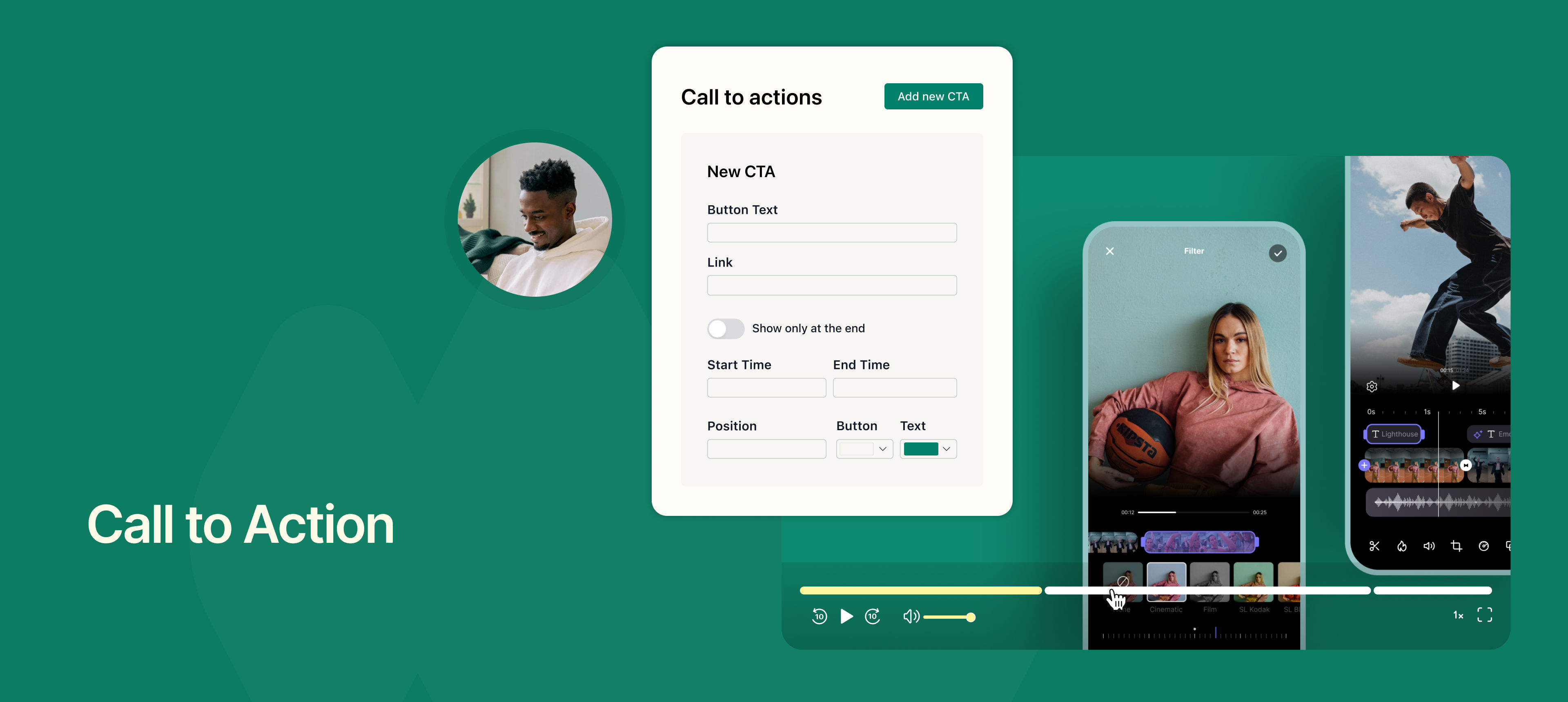
You can now add clickable Call to Action (CTA) buttons directly on your recordings.

This means you can guide viewers to take the next step—whether it’s visiting your website, booking a call via NeetoCal, following your social media, or opening any custom link, right from within the video.

For example:

  • Add a “Book a call” button that appears halfway through a sales demo.

  • Show a “Visit our website” link at the end of a product walkthrough.

  • Prompt viewers with “Follow us on LinkedIn” during an onboarding video.

You can customize each CTA with its own label, URL, position and theme. You can set the start and end time of CTA based on your preferences. Multiple CTAs can be added to a single recording and shown at different points during the video.

This helps drive engagement and conversions while reducing the need for manual follow-ups or extra messaging.

To learn how to use CTAs in your videos, read our help article.