What's new on NeetoRecord Help


record-changelog-recover-unfinished-recordings_mv1uhZeMv.png

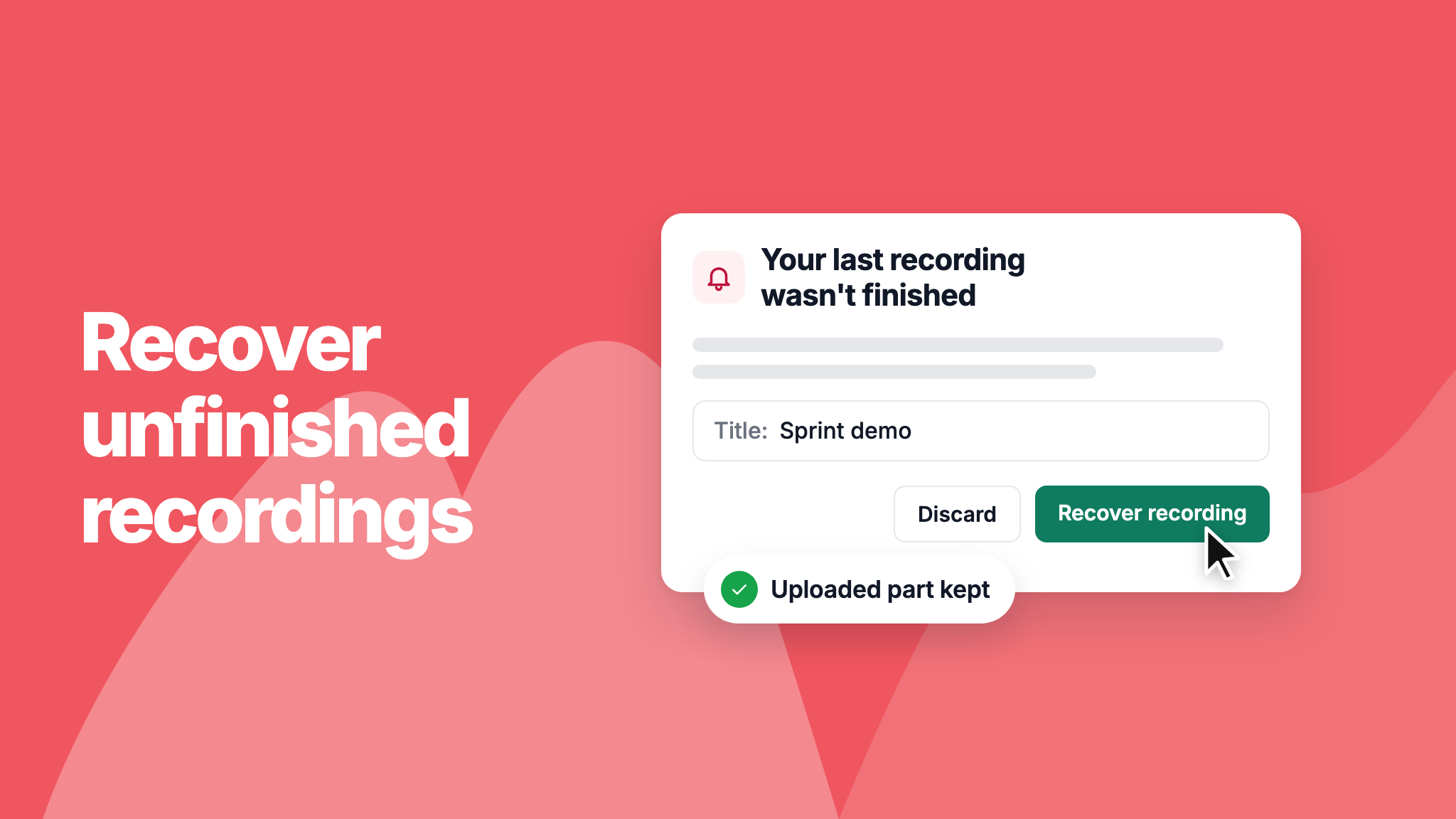
If your browser crashes or closes in the middle of a recording, you no longer lose the part that was already uploaded. The recordings page shows a message about it, and the Chrome extension asks about it the next time you open it.

Choose Recover to finish the recording with everything uploaded so far, or Discard to delete it. Desktop app recordings already recover from your computer.

To learn more, read our help article.

record-changelog-system-audio-in-the-web-recorder_lWNz78NMM.png

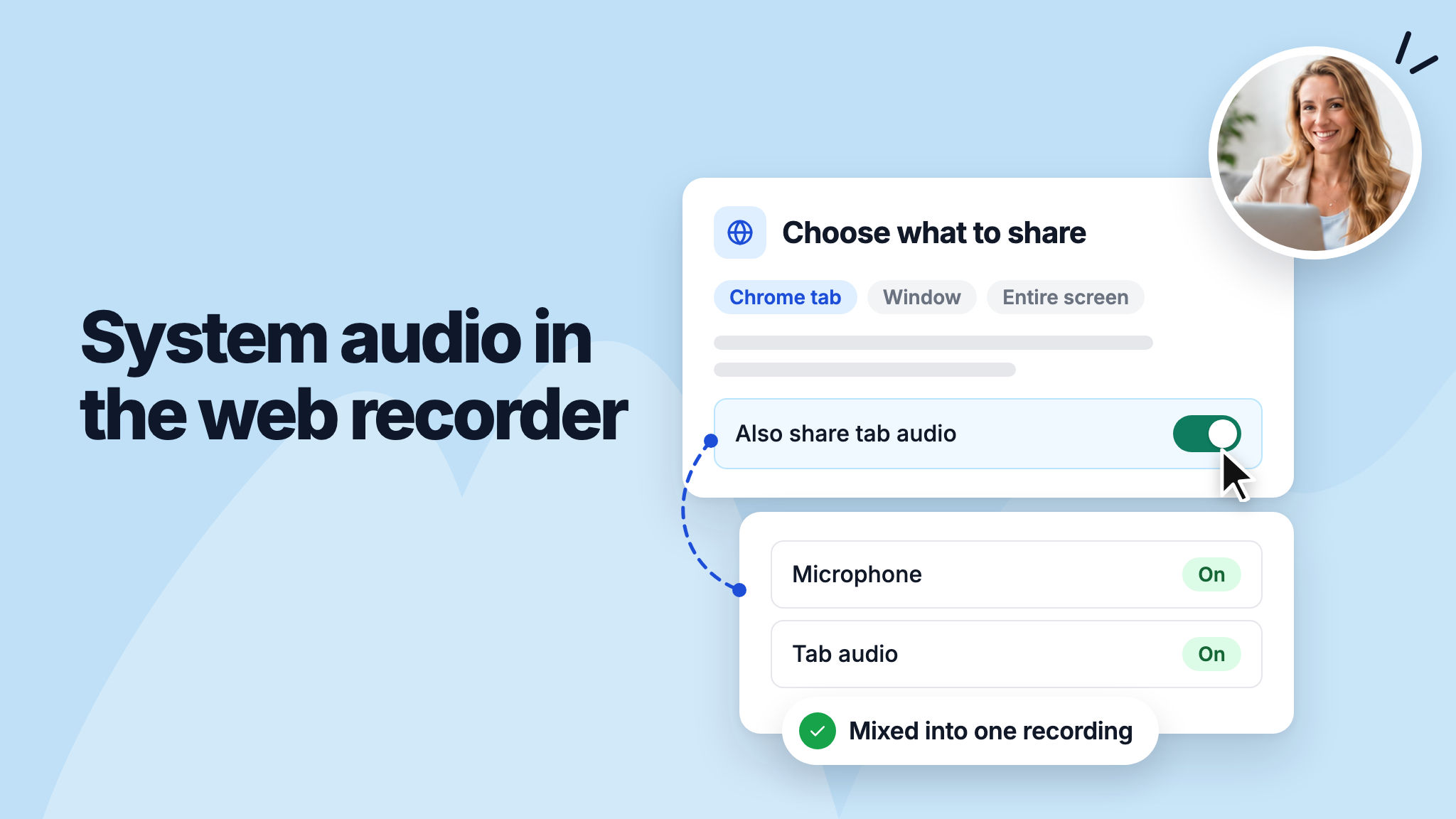
You can now record tab or system audio from the NeetoRecord web recorder again on the Pro plan, the same as in the Chrome extension and the desktop app.

When you choose what to share, Chrome offers to share its audio as well. NeetoRecord mixes that audio with your microphone, so viewers hear both you and what's playing on your screen.

To learn more, read our help article.
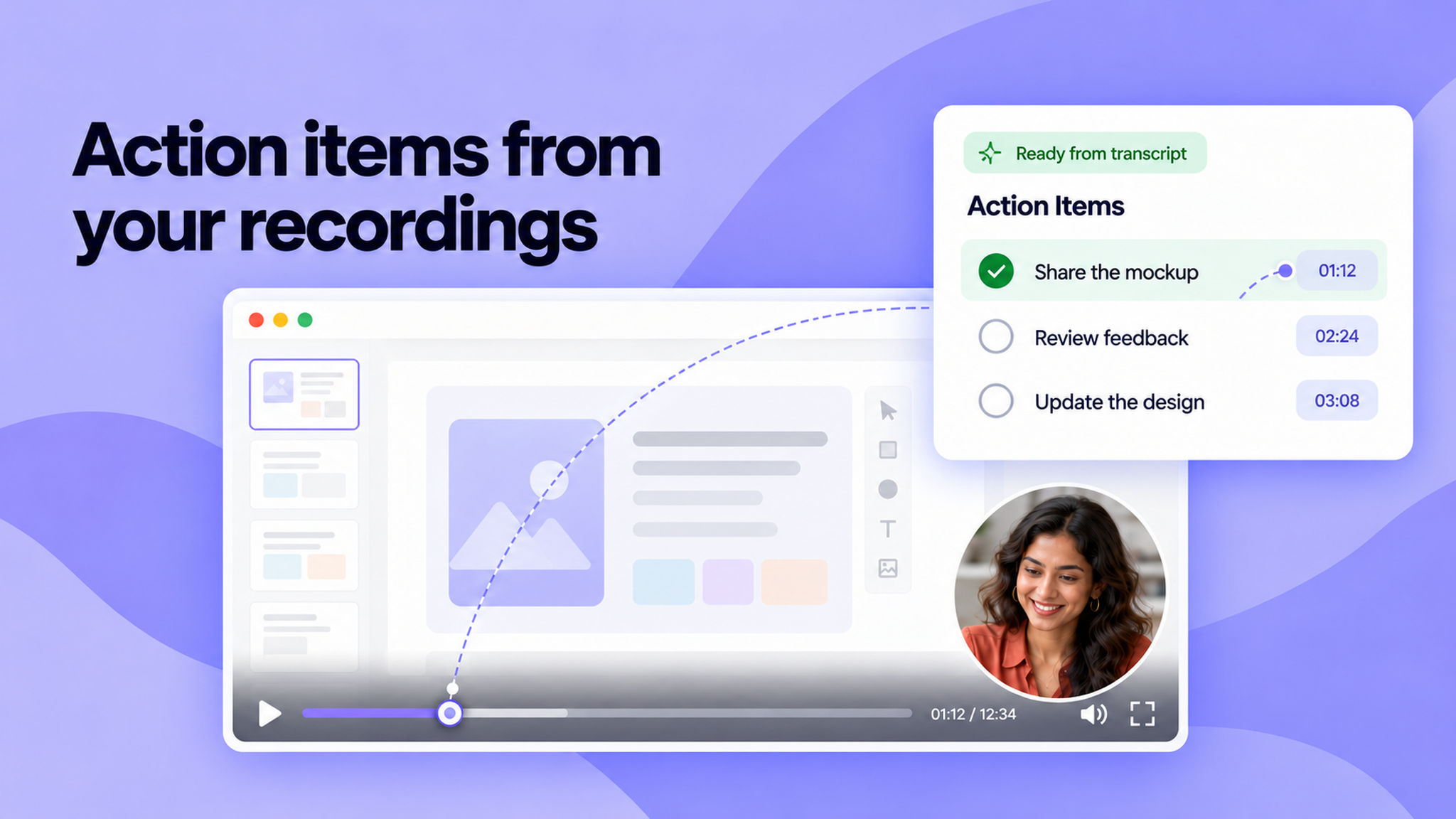

Action_items_from_your_recordings_fob3GSSqP.png

You can now see what needs to be done after a recording without watching it again. Once a recording has a transcript, NeetoRecord automatically pulls out the action items and lists them in the Action Items tab.

Each action item has a timestamp, so you can jump straight to the moment it was mentioned. You can add, edit, or delete action items, while viewers can tick them off as they work through the list.

To learn more, read our help article.
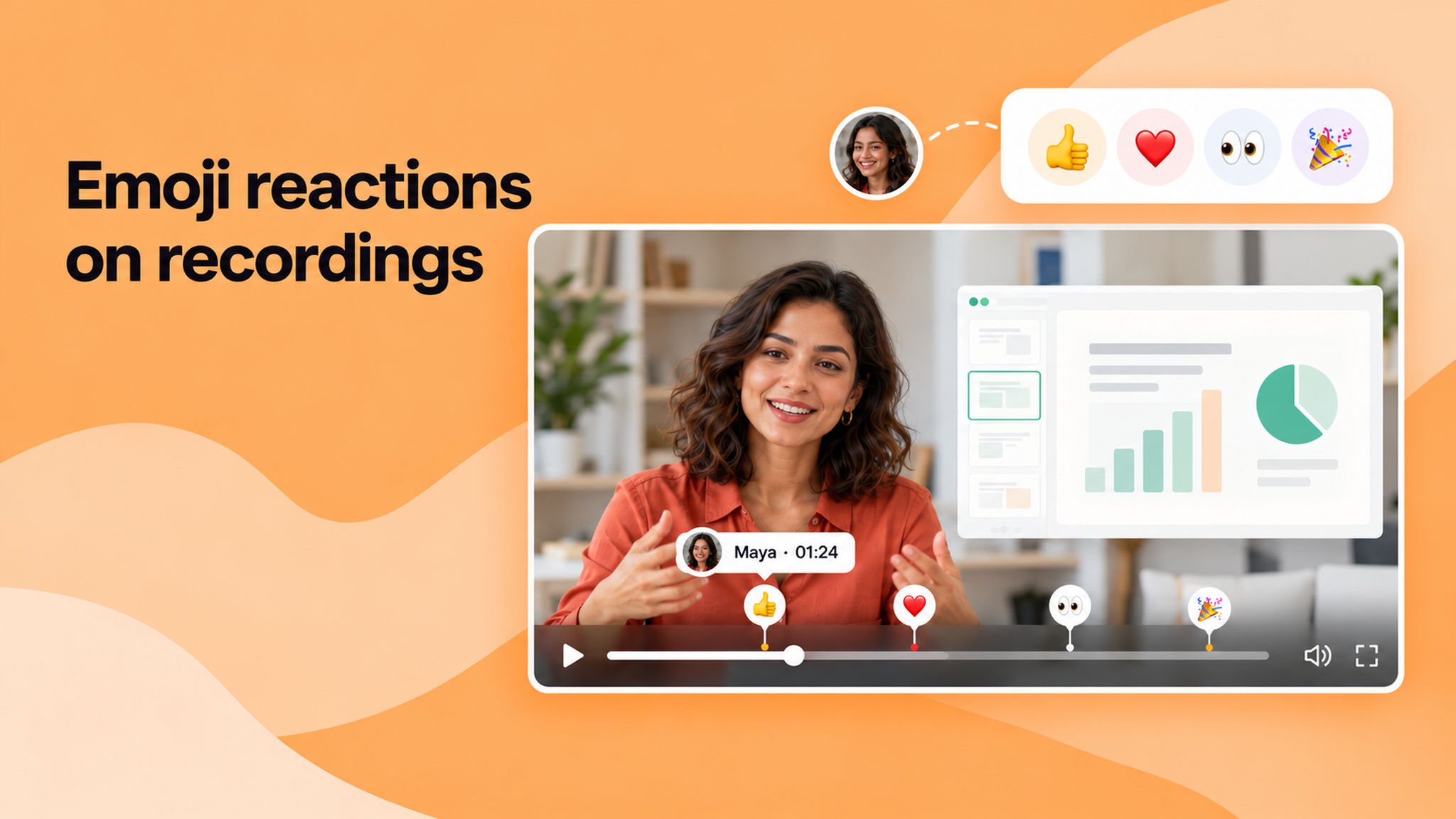

Emoji_reactions_on_recordings_ZOeKN0qMKM.png

Viewers can now react to your recordings with emoji. A reaction bar sits under the video.

Tap one and the reaction is pinned to the exact moment you are watching.

Every reaction shows up as an emoji marker on the progress bar.

Click a marker to jump to that moment, or hover to see who reacted.

To learn how to use this feature, read our help article.


Generate_action_items_from_recordings_1drVm-98z.png

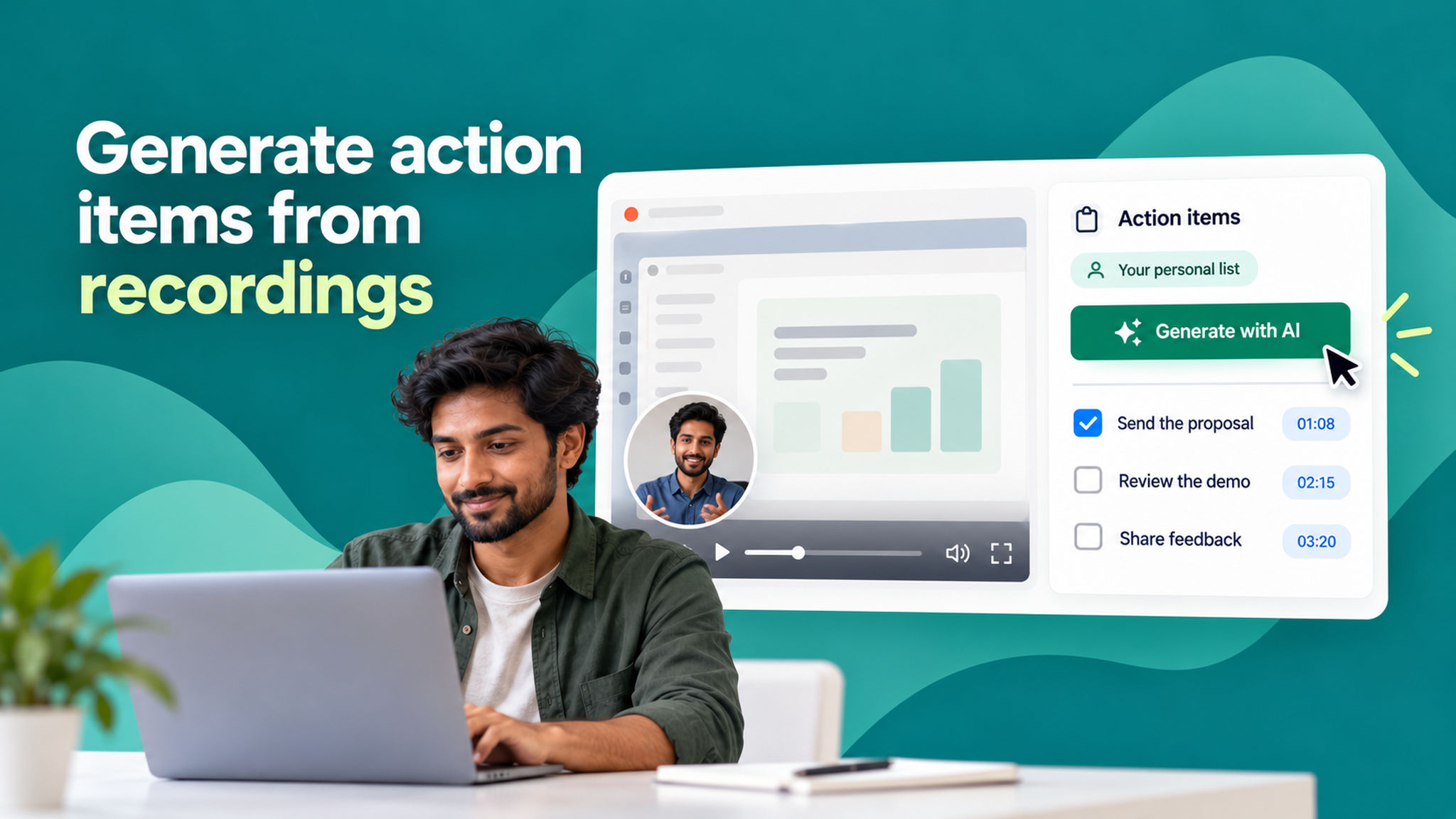
Recordings now have an Action items tab. Click Generate with AI and NeetoRecord pulls the action items out of the transcript, each one pinned to the moment it was mentioned and marked on the progress bar.

Your list is your own. Check items off, add your own, or edit them — none of it is visible to anyone else watching the recording, so everyone can track their own progress.

To learn how to use this feature, read our help article.


Recordings_are_no_longer_indexed_by_search_engines_1WLfWkHDn.png

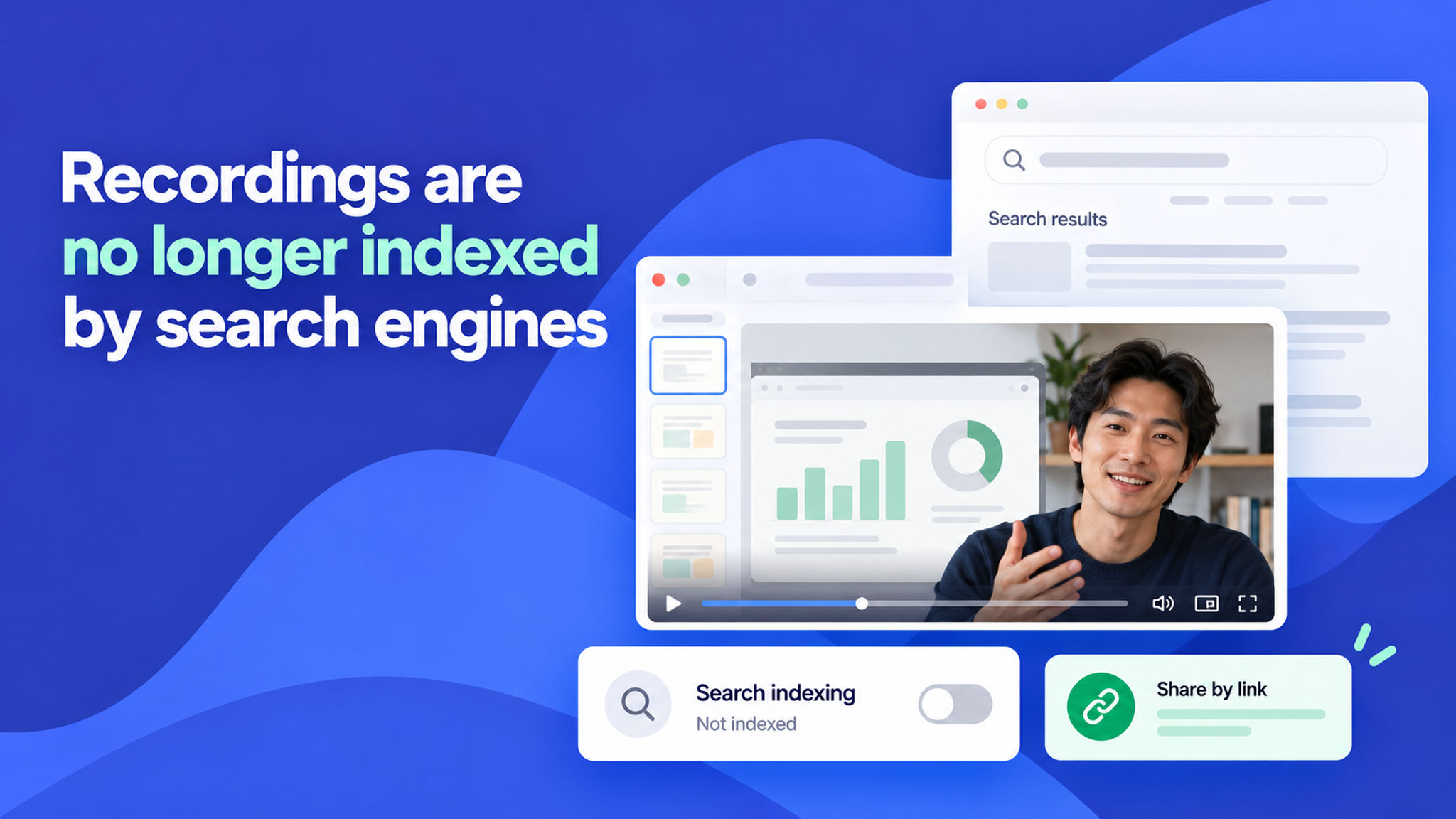
Your NeetoRecord recordings no longer appear in Google or any other search engine. This covers watch pages, embedded players, and recording request pages, for every recording in your workspace. There is nothing to turn on.

This means a link you share stays as private as you intended — anyone you send it to can still open it, but nobody can stumble onto it through a search.

To learn more about this, read our help article.


Upload_your_own_camera_background_tZRHsApcD.png

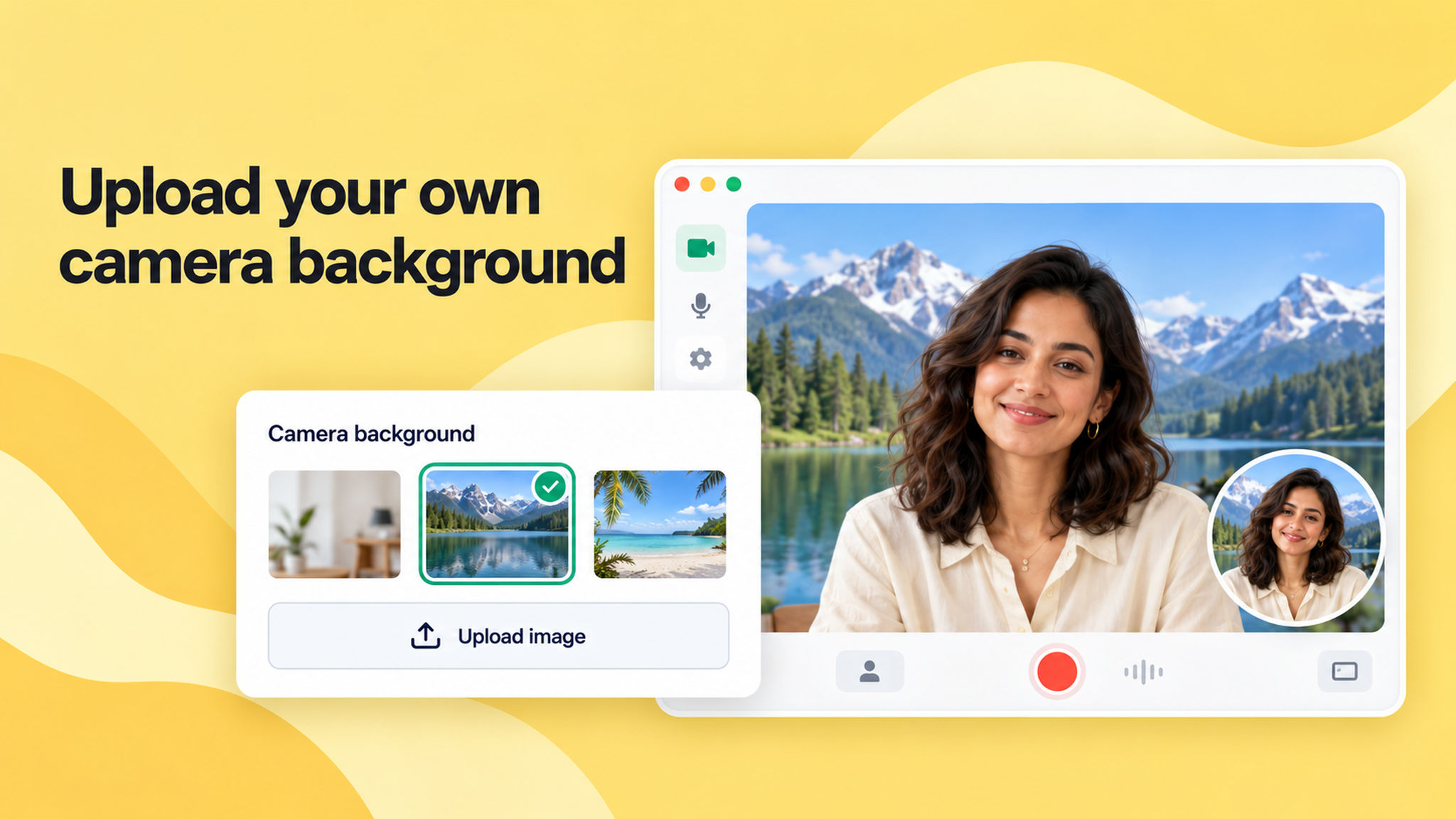
You can now upload your own images and use them as your camera background in the Chrome extension. Pick one of your custom images from the camera settings and it appears behind you in the recording, just like the built-in backgrounds.

This brings the Chrome extension up to par with the desktop app, which already supported custom backgrounds, so whichever way you record, you can brand your camera bubble with your own backdrop.

To learn how to use this feature, read our help article.


Drag_to_trim_your_clips_-BvGbj1jM.png

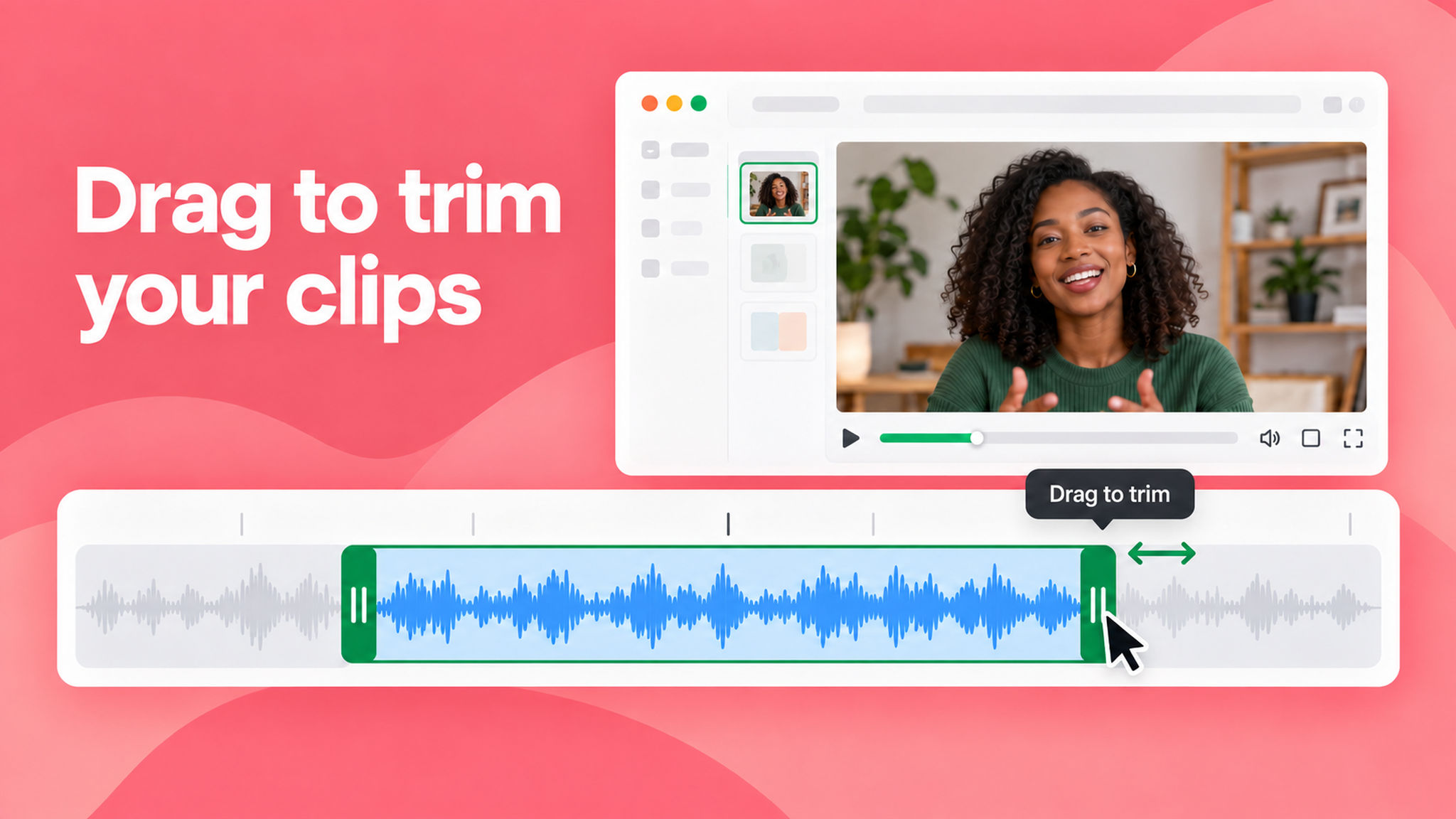
You can now drag the edges of a clip in the editor to fine-tune your trims, instead of relying on Split alone. Grab a handle on the clip you're working with and pull it in to cut more, or pull it out to bring trimmed content back.

This means you no longer have to start over when you cut a section too short, just pull the edge back out and the audio or video you trimmed returns, with the rest of your edits left untouched.

To learn how to use this feature, read our help article.


See_comments_right_on_the_progress_bar_ORPtAk_82.png

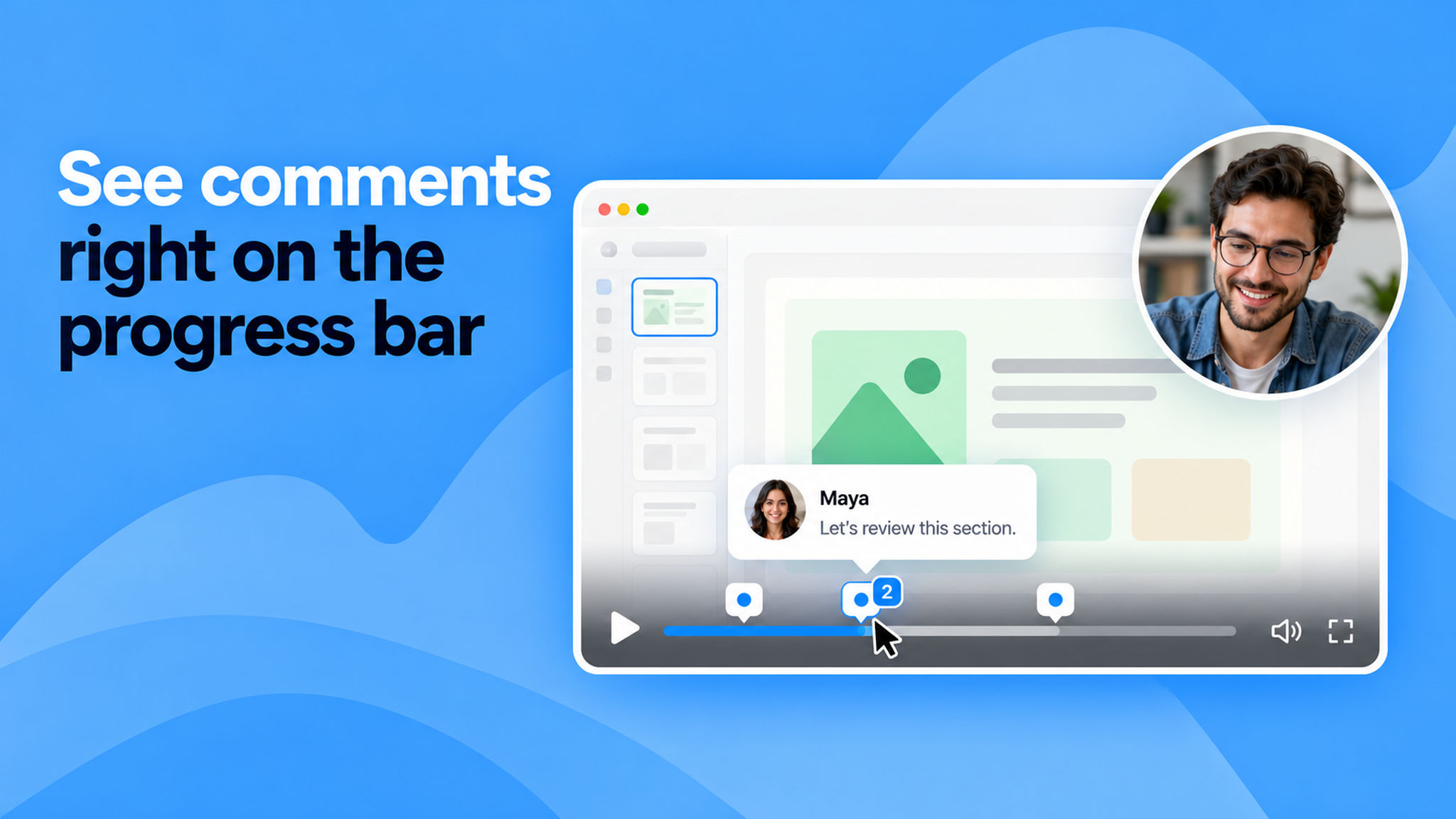
Comments now appear as comment bubbles on the video's progress bar, pinned to the exact moment each one was made. When several comments land close together, the bubble shows a count so you can tell how many are there at a glance.

Hover over a bubble to preview the comment without pausing, and click it to jump to that comment in the Comments tab. This makes it easy to spot where feedback lives on a recording and move straight to the part of the video it's about.

To learn more about the comments feature, refer this help article.


Undo_and_redo_your_edits_MpGSedDmN.png

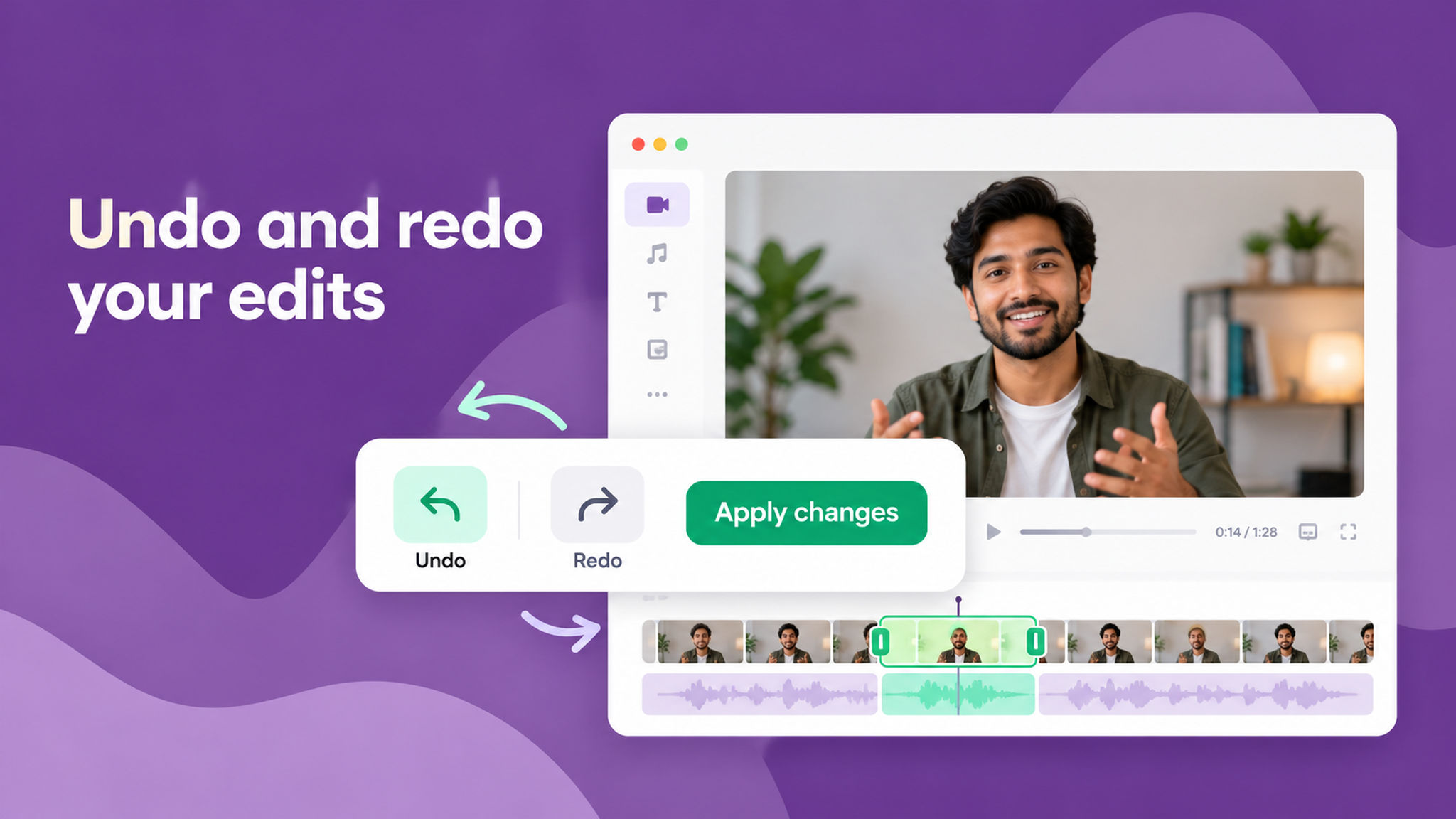
You can now undo and redo while editing a recording, one action at a time. Each undo reverses exactly the last change you made — a split or a deleted section — instead of undoing everything at once. You can redo to bring back the changes.

To learn how to use this feature, read our help article.